
Web Frontend Server User Guide
After you’ve written some scripts, you may want to have a convenient way to run them, typically from your phone. This can be done using the local web server.
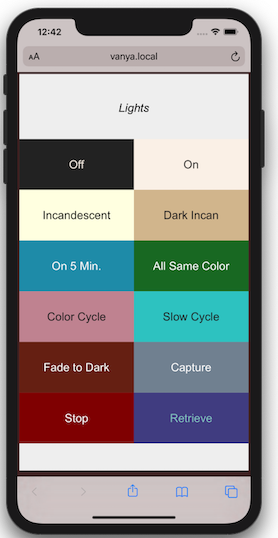
Website on Mobile Device
This application is designed to compliment the LIFX mobile app, not to replace it. In comparison to a typical IoT installation, the local web server has these differences:
Because each script has its own URL, you can easily launch a script with a browser bookmark.
After the devicess have booted up, there’s no dependency on the Internet.
You can acess the app from any browser on your WiFi network.
Because the local server is not accessible to the external Internet, nobody at Amazon or Google knows when you turn your lights on.
For example, if you want to just turn off the lights, you may find that navigating an app complicates a simple task. Using Bardolph, you simply unlock the phone and turn off the lights off with a single tap on a home screen shortcut.
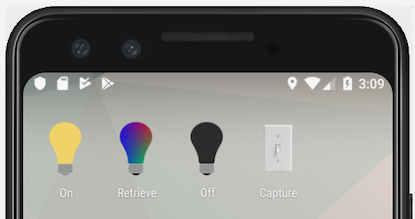
Home Page With Shortcut to Bardolph Script
It’s also convenient to access the lights from a smart TV’s web browser. When you sit down to watch a movie, you don’t have to find your phone to dim the lights; just use the TV.
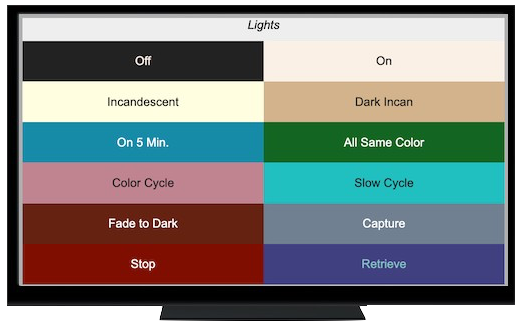
Home page on a TV’s web browser
The target configuration for hosting the web site is an inexpensive device which runs 24/7 as a headless server. A typical installation may be a Raspberry Pi that sits in a corner of a room.
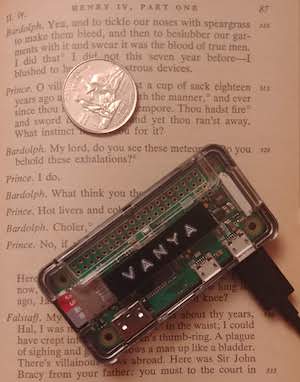
Typical server
Note
The URL you use to access the local web server depends on the name you
give the computer when you configure the operating system. Because the
default hostname for a Raspberry Pi is rasberrypi.local, all of the
URL’s in this documentation that refer to the local web server will be
on http://raspberrypi.local.
Theory of Operation
The server can have one script running the in the foreground and an arbitrary number of scripts running in the background.

Scripts Running Inside the Web Server
All of the active scripts run simultaneously. When the user clicks a button on the web page, a script is either added to the queue or immediately run in the background.
When a foreground script finishes, the web server automatically takes the next script off of the queue and runs it. It’s possible that no scripts will be in the queue, in which case no script runs in the foreground.
In a common use case, a script runs in an infinite loop. This correlates to the real-world situation where a light stays on until you flip a wall switch. The Bardolph virtual machine accomodates this use case with a graceful way for an outside agent to stop the execution of a script. The web server subsystem correspondingly allows a user to stop a script that otherwise would theoretically run forever. Note that whether a script terminates on its own, or is stopped by a user action, the web server automatically accesses the queue and runs the next script, if one is available.
Manifest
The manifest file specifies the collection of “buttons” that appear on the web site’s home screen. In the above screenshots, the home page has 12 of these buttons. With the current design, each “button” is actually a colored rectangle that the user can click or tap on.
Note
The original beta of Bardolph used JSON as the format for this file. In the interim, TOML has become a popular format and is more appropriate for this application. We will support JSON-formatted files on a temporary basis, but you should convert to TOML as soon as it’s convenient.
The file manifest.toml in the web directory specifies the list of scripts that will be available on the web site’s home page. That list also contains metadata for the scripts, mostly to control the appearance of the web page.
Whenever the web server is directed to run a script, it attempts to find that
file in the scripts directory.
For the following examples, assume that no scripts are running and the server is in the following state:

Website Before Any Scripts Are Started
Button 1: Turn On All The Lights
Below is a screenshot of the default home page that is available when you run the web server with the cofiguration included in the source code. The “On” button is in the upper, right-hand corner.
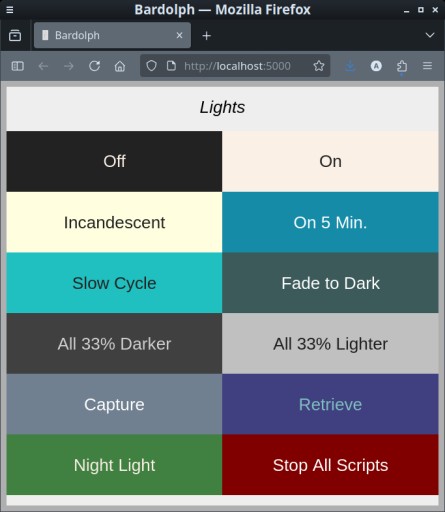
Homepage for Default Website
The manifest file contains this entry to define that button, which refers to a script from the source code distribution named on-all.ls. That script turns on all the devices that have been discovered
1[[button]]
2file_name = "on-all.ls"
3path = "on"
4background = "Linen"
5color = "#222"
In this manifest entry:
Line 1 declares that a new button is being defined.
Line 2 associates the button with the script “on-all.ls”.
Line 3 specifies the path in the URL that starts the script.
Line 4 defines the background color of the rectangle.
Line 5 specifies the color of the text.
Of note is the “path” entry, which in this case is “on”. This determines what URL starts the script. In this case, for example you typcally can start the script by going to http://raspberrypi.local/on. In fact, when the user taps or clicks the “On” button, the website simply navigates to that URL, thus starting the script.
The script itself is very short and simple:
duration 1.5 on all
While that script is running, the server is in the following state:

Website With on-all.ls Running
Button 2: Slow Cycle
This is an example of a script that deliberately runs in an infinite loop, and does not stop until the web server shuts down or tells it to stop. It sets all the lights to a low brighness and slowly cycles them through a range of colors.
The script contains a repeat loop with no terminating condition. Below is
a snippet of that script:
repeat
    repeat 10 with next_hue cycle 120
        begin
            hue next_hue
            set all
        end
The configuration for this button is:
Note that line 5 specifies that the script should run in the background. When the user taps that button, the script starts up and the home page indicates it is running with a lightbulb icon:
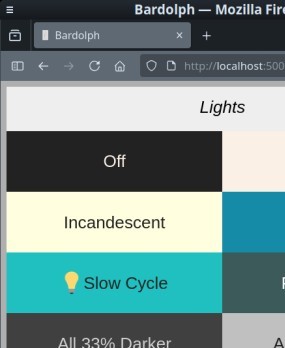
Website With cycle-color-slow.ls Running
While that script is running, the server is in the following state:

Website With cycle-color-slow.ls Running
Note that the script can run even if the lights are powered off. If the user again taps on “Slow Cycle”, the web server will stop the script. The script can also be stopped with the “Stop All Scripts” button.
Manifest Settings
Below is an example of a button definition that configures all of the available settings:
[[button]]
file_name = "table-tv.ls"
path = "tv"
icon = "colorBulb"
title = "TV Viewing"
background = "rgb(32, 192, 192)"
color = "#222"
clear_foreground = true
clear_background = false
file_name
This is the name of the file containing the script to be run. The web server
assumes that all of the scripts are in the scripts directory.
Default: the value of path with .ls appended to it. In this example,
if file_name were omitted, the file tv.ls would be used.
Each entry must have either path or file_name set.
path
The path setting determines the path on the web site that runs this script,
sometimes also called a “slug”. In this example, the manifest specifies that the
URL will be http://raspberrypi.local/tv.
Default: the value of file_name with .ls stripped off. In this example,
if path were omitted, the URL would be http://raspberrypi.local/table-tv.
Each entry must have either path or file_name set.
icon
This specifies which icon to use as the so-called favicon for the URL that runs the script. The following values are available:
switch
darkBulb

litBulb

colorBulb

redBulb

greenBulb

blueBulb

redGreenBulb

Default: litBulb
title
The string from title appears in a colored box on the web page.
Default: The title is generated from the value for path. If the path contains
words separated by hyphens or underscores, the title is generated in a
human-friendly manner. For example, if path is fade-to-dark, the title
displayed on the website will be “Fade To Dark”.
color and background
The button is rendered as text in a colored box. The value for color
specifies the color of the text, and background specifies the color of
the containing bos.
Both values must be strings from the CSS color space. The strings are sanitized and passed through to the web page as an embedded CSS class.
Neither of these settings has a default. If you omit color, the text will
have the default color used by the web browser. If you omit background, the
box will have the default color that the web browser uses for web pages.
clear_foreground
If set to true, the web server terminates the foreground job when the user
taps or clicks on the specified button. It also clears the foreground queue.
This is useful when you want a script to run immediately.
Default: false
clear_background
If set to true, when the user taps on the button, all scripts running in the
background will be stopped.
Default: false
Examples Using Defaults
Below are two minimal entries that rely on defaults. They both have the same outcome when the web server is run.
[[button]]
file_name = "night-light.ls"
background = "rgb(64, 128, 64)"
color = "Linen"

[[button]]
path = "night-light"
background = "rgb(64, 128, 64)"
color = "Linen"
Capture and Retrieve
The “Capture” button causes the server to query the lights and generate a script that reflects their current settings. That file is scripts/__snapshot__.ls. Clicking on “Retrieve” runs that script, thus restoring the saved state.
Although the home page has no link to it, a page at http://server.local/status lists the status of all the known lights in a very plain output with no CSS.
Server Status
A built-in page called status (http://raspberrypi.local/status) lists the
state of the devices and the jobs that are running and queued.
Development Mode
The server executes within the Flask framework. If you run it, you may want to become familiar with Flask. However, it’s not necessary unless you want to modify the web app itself.
Normally, you would want to run the web server in production mode, using a reverse proxy with an HTTP server. Instructions for setting that up are in Web Frontend Server Installation. However, if you’re just experimenting, the server can be run in development mode.
Because the server will run on a local network, the issues around security and scalability are less of a concern. For experimenting and development, you may just want to stick with development mode. To do that, first:
pip install Flask lifxlan
This installs the Python libraries that the Bardolph code relies on. However, unless you make firewall changes, you probably won’t be able to access the app except on localhost.
Starting the Development Server
To start the server in that manner, cd to the root directory of the source tree (ex: ~/bardolph). Then:
source web/setenv
flask run
The setenv script sets some environment variables used by Flask when running the server. After you start the server, you can access it with: http://localhost:5000.
To stop the server, press Ctrl-C.
LIFX Apps
Bardolph does nothing to directly interfere with the operation of the apps provided by LIFX. However, a running script will continue to send commands to the bulbs. Therefore, if you want to use the LIFX app or any other software, such as HomeKit or Alexa, you should hit the “Stop” button on the Bardolph web site. Alternatively, if you shut down the web server, that will also prevent it from sending any more commands to the lights.